In the course of your lifetime (with WordPress), you'll want to learn how to migrate WordPress site(s). For various reasons.
Some reasons can be simple. Some critical.
If you’ve been staring at a "Database Connection Error" , If your site loads slow, crashes or stalls during a flash sale or when you watch your Google Search Console rankings dip because your site loads like it’s 1999, you know the feeling. It’s that sinking realization that your current hosting provider is no longer a partner in your growth—they’re a bottleneck.
As a Technical marketer and as a lean ops marketing architect, I’ve seen hundreds of eCommerce founders hesitate to move. They fear the "Great Migration Crash." Or maybe it's just laziness. Or is it inertia?
They worry about lost orders, broken checkout pages, and the dreaded SEO nightmare where Google decides your site is "down" and strips your rankings.
I’m here to tell you that migrating your WordPress site doesn’t have to be a high-stakes gamble. When done correctly, it’s a seamless transition that results in faster load times, better security, and a healthier bottom line. It's easier than it's made out to be. Many leading managed hosting providers either plugins that automate or semi-automate this process. Or, they have white-glove migration services (so, you don't even have to learn how to migrate WordPress sites)
In this guide, we’re going to walk through the exact, battle-tested blueprint for migrating your site without losing a single visitor or a penny in revenue.
Phase 1: The "Why" and the "Where"
Before we touch a single file, we need to address the most important question: Where are you going?
Cheap shared hosting is fine for a hobby blog, but for a growing business, it’s a liability. You need an environment that scales with your traffic. This is why I almost always steer my clients toward Kinsta’s Managed Platform. Unlike traditional hosts that cram thousands of sites onto one server, Kinsta uses Google Cloud Platform’s premium tier network.
When choosing a new host, look for these non-negotiables:
- Isolated Resources: Your site shouldn't slow down because another site on the same server is getting a traffic spike.
- Server-Level Caching: This eliminates the need for bulky, complex caching plugins.
- Staging Environments: A "sandbox" where you can test the migrated site before the world sees it.
- Expert Support: You need 24/7 access to people who actually know WordPress, not just script-readers.
- Saved Time: When you don't have to think about hosting, WordPress security, Speed of your site, or managing servers, I don't have to explain how saving time translates to profits.
Phase 2: The Pre-Migration Audit
The biggest mistake people make is migrating "trash." If your site is bloated with 40 deactivated plugins and 2GB of old backups, don't move them.
1. Clean House
Delete unused plugins and themes. Run a database optimization tool (like WP-Optimize) to clear out thousands of old post revisions and expired transients. This makes your migration file smaller and the process faster.
2. Take a "Safety First" Backup
Even though your new host might offer migration services, always take your own manual backup. Use a plugin like Duplicator or UpdraftPlus and store that file on your local machine or a cloud drive like Dropbox.
3. Record Your Benchmarks
Run a speed test on GTmetrix or Google PageSpeed Insights. Take screenshots of your current SEO rankings for your top 10 keywords. You need a "before" snapshot so you can prove the "after" is better.
Phase 3: Choosing Your Migration Path
There are two ways to move a site: the Auto-Pilot Way and the Manual Way.
The Auto-Pilot Way (Recommended)
Most premium hosts want your business and will move your site for free. For example, if you move to Kinsta’s Isolated Cloud Infrastructure, their engineers handle the heavy lifting for you. This is the "Zero Stress" option. You simply provide your current host's credentials, and they move the files, the database, and the configurations.
The Manual Way
If you’re a hands-on founder or developer, you’ll likely use a migration plugin.
- Install a Migration Plugin: (e.g., All-in-One WP Migration).
- Export Your Site: This creates a single file containing your entire site.
- Install WordPress on the New Host: Create a fresh, blank WordPress install.
- Import the File: Upload your export file to the new site.
Phase 4: The Secret Weapon — The Staging Site
This is where 90% of migration disasters are avoided. Do not point your domain to the new server yet.
Once your site is moved to the new host, it will live on a "temporary URL" (e.g., sitename.kinsta.cloud). This is your staging area.
What to check in Staging:
- Permalinks: Click through your pages. Do you get 404 errors? If so, go to Settings > Permalinks and hit "Save" to refresh the structure.
- The Checkout Flow: If you run WooCommerce, do a test transaction. Does the payment gateway connect?
- Forms: Submit a contact form. Does the email actually arrive in your inbox?
- Images: Look for "broken" images that might still be trying to load from your old server's file path.
Also, if you can't keep your hands off your WordPress experiments, this staging site feature will save your pink bottom more than you'll ever give credit for.
Phase 5: The "No-Downtime" DNS Switch
This is the moment of truth. To move your traffic from the old host to the new one, you have to update your DNS (Domain Name System) settings.
The TTL Trick
A few days before you migrate, log into your domain registrar (like Namecheap or GoDaddy) and look for the TTL (Time to Live) setting on your A Record. It’s usually set to 3600 (one hour) or 86400 (24 hours).
Change this to 300 seconds (5 minutes).
By doing this, you're telling the internet to check for updates every 5 minutes instead of every day. This ensures that when you finally switch hosts, the change happens almost instantly across the globe, minimizing the "propagation" window where some users see the old site and others see the new one.
Updating the A Record
Once you are 100% happy with the staging site, copy the IP Address of your new server. In your DNS settings, replace the old IP address with the new one.
Phase 6: Post-Migration "Sanity Check"
The DNS has switched. Your traffic is flowing to the new server. You’re done, right? Not quite.
1. Install your SSL Certificate
Most modern hosts provide free Let’s Encrypt SSL certificates. Ensure yours is active. A "Not Secure" warning is the fastest way to kill your conversion rate.
2. Update Your Search Console and Analytics
Check Google Analytics to ensure data is still flowing. You don't need to change any code, but you want to make sure your tracking snippets didn't get dropped during the move.
3. Monitor for 404s
Use a plugin like Redirection to monitor 404 errors for the first 48 hours. If a specific URL structure broke during the move, you’ll see it here first and can fix it before Google de-indexes the page.
4. Cancel the Old Hosting (Wait!)
Do not cancel your old hosting account immediately. Keep it active for at least 7 days. This acts as an emergency "Undo" button. If something catastrophic happens on the new server, you can simply point your DNS back to the old IP and you're back in business.
Why the Infrastructure Matters for Business Outcomes
As a business owner, you aren't just buying "disk space." You are buying uptime and peace of mind.
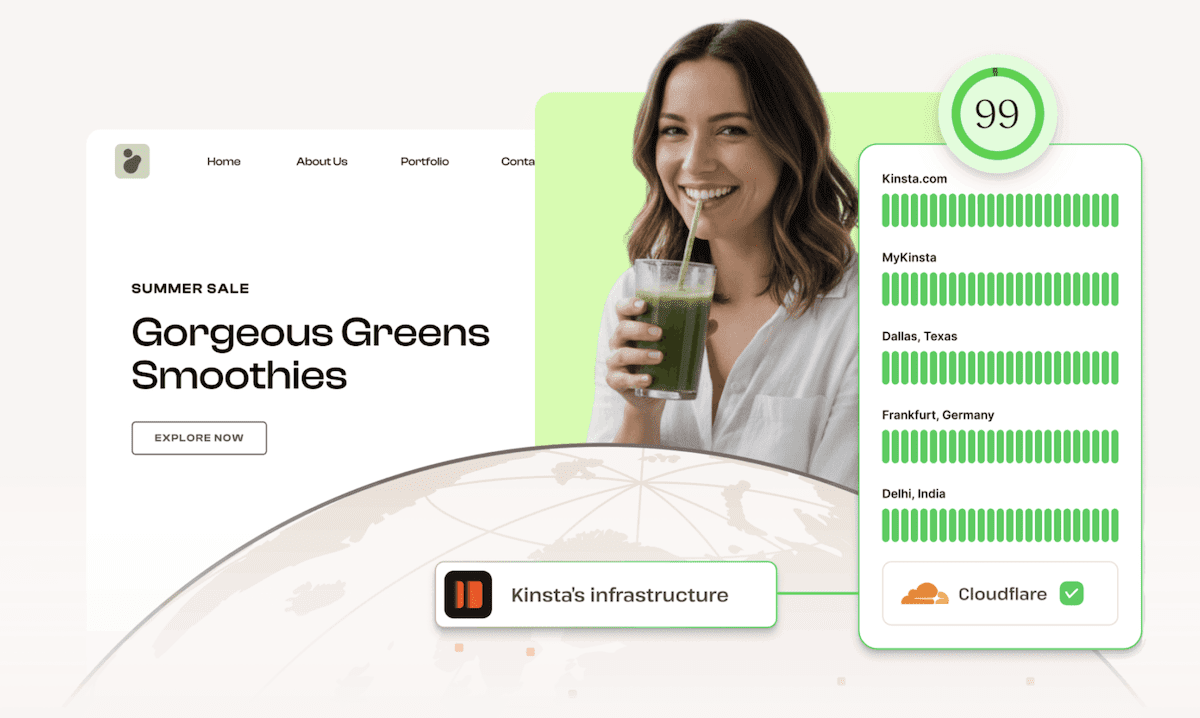
When we talk about Kinsta’s Managed Platform, the value isn't just in the migration—it's in what happens after. Because they use containerized technology, your site is shielded from the "bad neighbor" effect. If another site on their network gets hit with a DDoS attack, your site remains fast and functional because your resources are 100% isolated.
For an eCommerce store, a 1-second delay in page load time can lead to a 7% reduction in conversions. If your migration takes you from a 4-second load time to a 1.5-second load time, the move pays for itself within the first month.
Go to Google page Insights to see where you stand
Frequently Asked Questions (The Founder’s Concerns)
"Will my emails stop working?"
If your email is hosted through your WordPress provider (e.g., your email ends in @yourdomain.com and you check it via cPanel), yes, it will break if you don't migrate your mail records.
- Pro Tip: Move your email to a professional provider like Google Workspace or Microsoft 365 before you migrate your website. It keeps your communication and your hosting separate, which is much safer.
"What happens to orders placed during the migration?"
This is the "Data Gap" problem. If someone buys a product on your old site while you are moving files to the new one, that order won't exist on the new site.
- The Solution: Put your site into "Maintenance Mode" for the 30 minutes it takes to do the final database export/import. It’s better to have a "We’ll be right back" message for 30 minutes than to lose a customer’s order data.
"Is it worth paying more for Managed WordPress Hosting?"
If your site generates more than $1,000 a month in revenue, the answer is a resounding yes. Cheap hosting requires you to be the sysadmin. Managed hosting allows you to be the CEO. You’re paying for the security, the automatic backups, and the expert support that saves you from 3:00 AM meltdowns.
Final Thoughts: The Path to a Faster Future
Migrating your WordPress site is like moving to a better office space. It’s a bit of a chore to pack the boxes, but once you’re in a building with better plumbing, faster internet, and more room to grow, you’ll wonder why you waited so long.
By following this blueprint—cleaning your data, using a staging environment, shortening your TTL, and choosing a high-performance host—you eliminate the risk. You transition from a position of "hoping the site stays up" to "knowing the site can scale."
If you’re ready to stop worrying about server crashes and start focusing on your growth, take that first step. Audit your current site today, and look for a partner that treats your business with the technical respect it deserves.
Your customers (and your bottom line) will thank you.