Learning HHow to Add Your Site as a Google Preferred Source is a low effort and high-return task you could take over a weekend. Just like adding a llms.txt file.
Simple, quick, and it wont hurt.
Google just quietly handed publishers one of the most powerful visibility tools in years — and most site owners haven't touched it yet.
It's called Google Preferred Sources. And if you run a blog, a content site, or any kind of publishing operation, setting this up should be on your to-do list today.
Here's everything you need to know: what it is, why it matters, how to implement the button (three ways), how to style it to match your brand, and how to track every single click it gets.
The ability to be added as a Preferred Source presents the potential for greater visibility among your target audience.
Google says people are “twice as likely to click through to a Preferred Source.”
For publishers (that applies to brands, eCommerce stores, businesses , that's the real opportunity. That kind of personalized visibility boost could meaningfully change traffic patterns, especially as AI experiences handle more queries.
According to Ana Camarena of Semrush,
"Being added as a Preferred Source is also a way to improve your AI visibility without directly optimizing your content or your online presence. You become more visible in AI Overviews, AI Mode, Top Stories, and the new carousels simply because users have chosen to prioritize your content."
What Are Google Preferred Sources?
Google Preferred Sources is a feature that lets users select their favourite websites to be prioritised in Google Search results, AI Overviews, and AI Mode. When someone adds your site as a Preferred Source, your content gets labelled and surfaced prominently — ahead of sites they haven't chosen.
Think of it as a personalised trust signal. The user is telling Google: "When I search for something, show me this site first."
And the numbers back it up: Google says people are twice as likely to click through to a Preferred Source. For a publisher, that's not a marginal improvement — that's a fundamental shift in how your content gets discovered.
Where Preferred Sources Now Appear
This is where it gets genuinely exciting. Google is expanding Preferred Sources beyond standard search — bringing it to AI Overviews, AI Mode, and new carousels for developing and breaking topics.
Content from Preferred Sources is labelled in AI results so users can easily identify it — similar to how it already works in Top Stories.
When a query is about an evolving or breaking subject, searchers may see a prominent carousel of timely article links — and Preferred Sources get pulled into those carousels too.
In plain English: as AI handles more and more search queries, being someone's Preferred Source means your content shows up inside AI answers — not just below them.
Why Every Publisher Should Care Right Now
Most site owners are focused on optimising their content for AI visibility — trying to get cited in AI Overviews through better writing, better structure, better E-E-A-T signals. That's valid. But Preferred Sources offers a parallel path that most people are ignoring.
Being added as a Preferred Source improves your AI visibility without directly optimising your content or online presence — you become more visible in AI Overviews, AI Mode, Top Stories, and new carousels simply because users have chosen to prioritise your content.
That's a meaningful distinction. You're not fighting the algorithm — your own readers are doing the work for you.
The audience you've already earned becomes an amplifier for your reach. Every loyal reader who adds you as a Preferred Source increases the likelihood that your content surfaces when they (and people like them) search for anything in your topic area.
You might or might not publish. But learn how to add
How to Add a Preferred Source Button to Your Site
To take advantage of this, you need to make it easy for your readers to add you. That means putting a Preferred Source button or CTA on your site — ideally somewhere prominent, like your header, footer, or sidebar.
Here's how to do it, three different ways.
Here is exactly how to generate the link and/or implement the button on your site (depending on how you choose to do it).
Your call. But do it.
Method A: Generate Your Direct Link
Google uses a specialised URL format that takes users directly to the Source Preferences dashboard with your domain pre-filled. This means they can add your site in a single click — no searching required.
The URL format is:
https://google.com/preferences/source?q=yourdomain.comExample: If your site is fetchprofits.com, your link is:
https://google.com/preferences/source?q=fetchprofits.comImportant eligibility note: Subdomains like blog.yourdomain.com are fully eligible. However, subdirectories like yourdomain.com/blog cannot be isolated — you can only register the root domain or a subdomain.
Click on this link https://www.google.com/preferences/source?q=fetchprofits.com or on the button below to add this site as your preferred source
Please remember that your website has to start showing up or show up completely in the list that shows up after the page that follows loads, and users have to explicitly check a box to add your site as their preferred source.
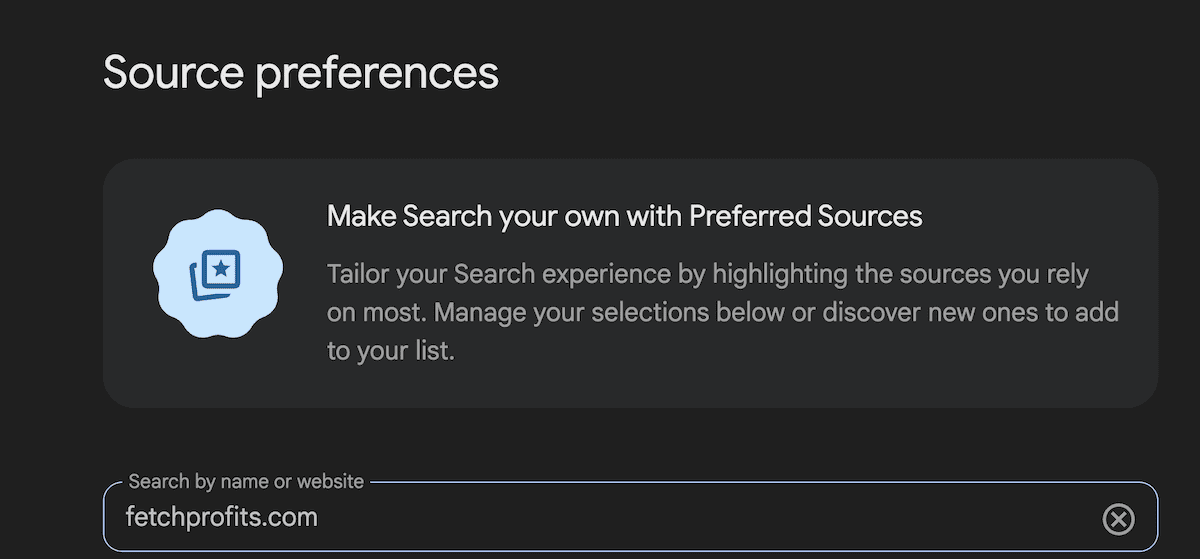
You could just drop the link to a custom button to have people go to the page and take the final step to add you as a preferred source.
Method B: Add as Preferred Source on Google WordPress Free Plugin (No Code)
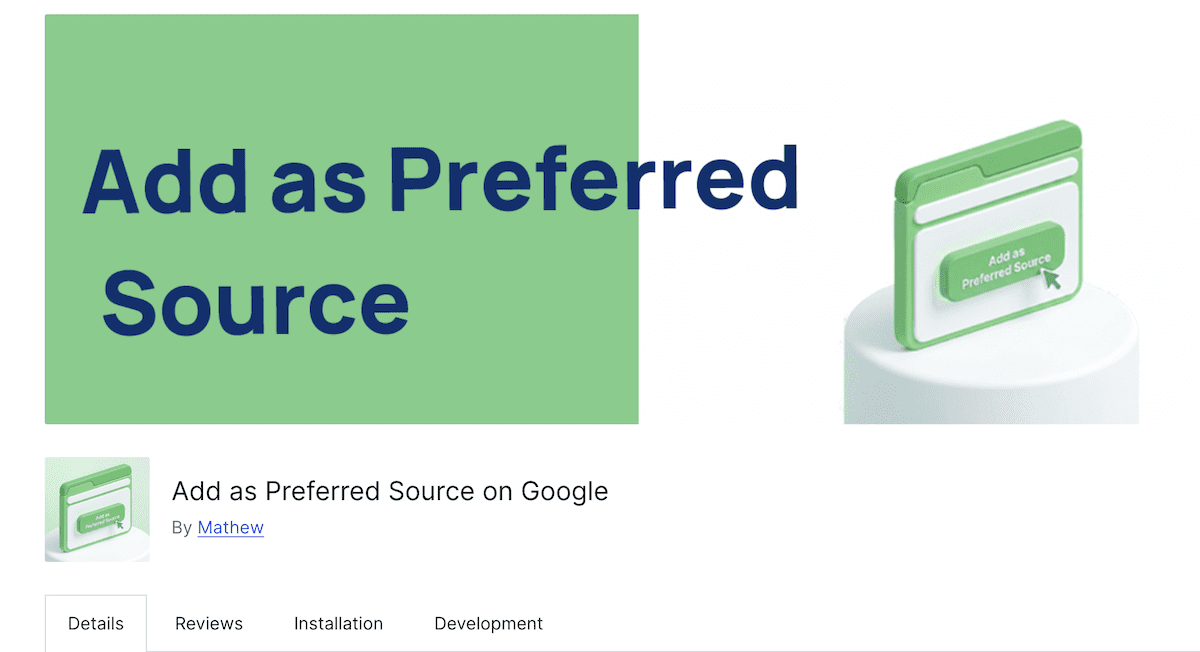
If you manage a WordPress website, a dedicated plugin automates this layout. My only issue with this method (although this would be easiest for WordPress users) is that it's another plugin (potentially slows your website down).
One way to counter this is to use a faster host or take the risk and follow along, or use Method A.
- From your dashboard, navigate to Plugins > Add New.
- Search for "Add as Preferred Source" or "Add as Preferred Source on Google".
- Install and Activate the plugin.
- Go to Settings > Add as Preferred Source to turn on the layout banner, customize colors, and choose a top or bottom viewport position.
Method C: Page Builders (Wix, Squarespace, Shopify)
Wix: Add a Custom Embed widget to your template and insert your HTML hyperlink code.
Squarespace: Insert a standard Code Block in your footer or page section layout.
Shopify: Navigate to your theme customizer and add a Custom Liquid section to paste your hyperlinked button.
Method D: Official Google Button (Custom HTML)
Google provides official button assets — localised graphic images you can download and use directly on your site.
Steps:
- Visit the Google Search Central Guide to Preferred Sources
- Download the button asset in your preferred language (English, Spanish, Danish, and others are available)
- Upload the image to your server or media library
- Wrap it in a link pointing to your custom URL:
<a href="https://google.com/preferences/source?q=yourdomain.com"
   target="_blank"
   rel="noopener">
  <img src="/path-to-assets/google_preferred_source_badge_light.png"
       alt="Add fetchprofits as a preferred source on Google">
</a>
This is the cleanest implementation — uses Google's official branding, works universally, and requires no plugins.
The Bigger Picture
Search is changing faster than at any point in the last decade. AI Overviews, AI Mode, personalised carousels — the traditional "write good content and rank" playbook is being rewritten in real time.
Google Preferred Sources is one of the few mechanisms that lets your own audience advocate for your visibility inside that new system. It's not a hack. It's not a loophole. It's Google explicitly building a path for publishers to stay visible — and handing you the tools to use it.
Set up the button. Tell your readers. Track the clicks.
The publishers who act on this now will be better positioned than the ones who wait until everyone's doing it.